
Manage Photos

Your memories deserve better organization.

Learn how to organize, find, edit, share, and preserve your photos—without feeling overwhelmed.

Whether you have a few hundred photos or a library that has grown for years, we'll focus on practical skills you can use immediately.

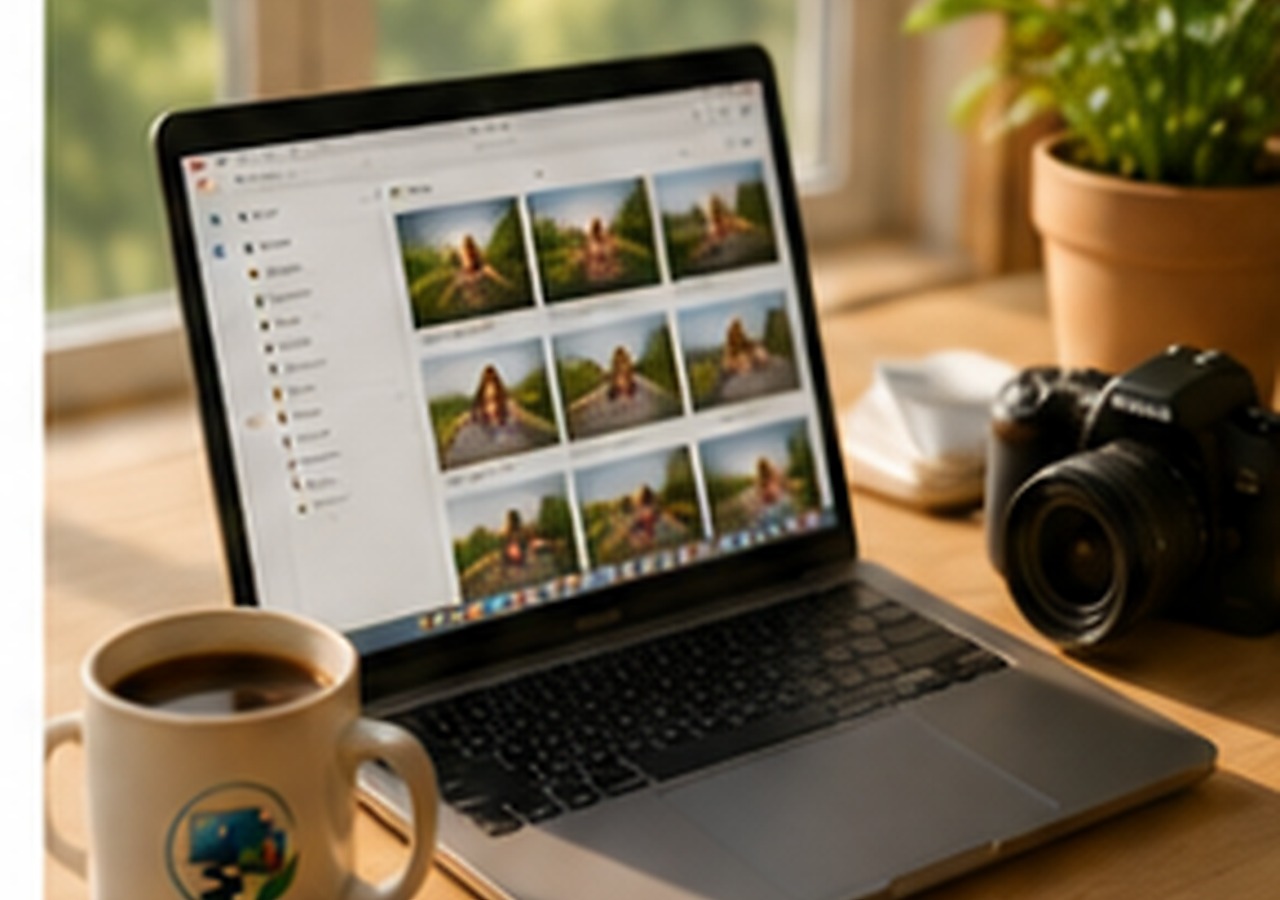
MacBook displaying an organized photo library
01 · Organize

Turn a growing library into something manageable.

The goal isn't to create a perfect library. It's to create a system that helps you find and enjoy your memories.

Creating and organizing photo albums on a Mac.

Albums

Create albums for vacations, family, holidays, events, projects, pets, hobbies, or anything else that matters to you.

Folders

Use folders to group related albums and keep a large collection easier to navigate.

Favorites

Use Favorites to quickly return to the photos you especially want to keep close.

Jay's Tip

You don't have to organize everything. Start with the photos you care about most.

02 · Find

Your photos are more searchable than you think.

You may not remember when a photo was taken. You may remember who was there, where you were, or what was happening. Photos can often help you search from those clues.

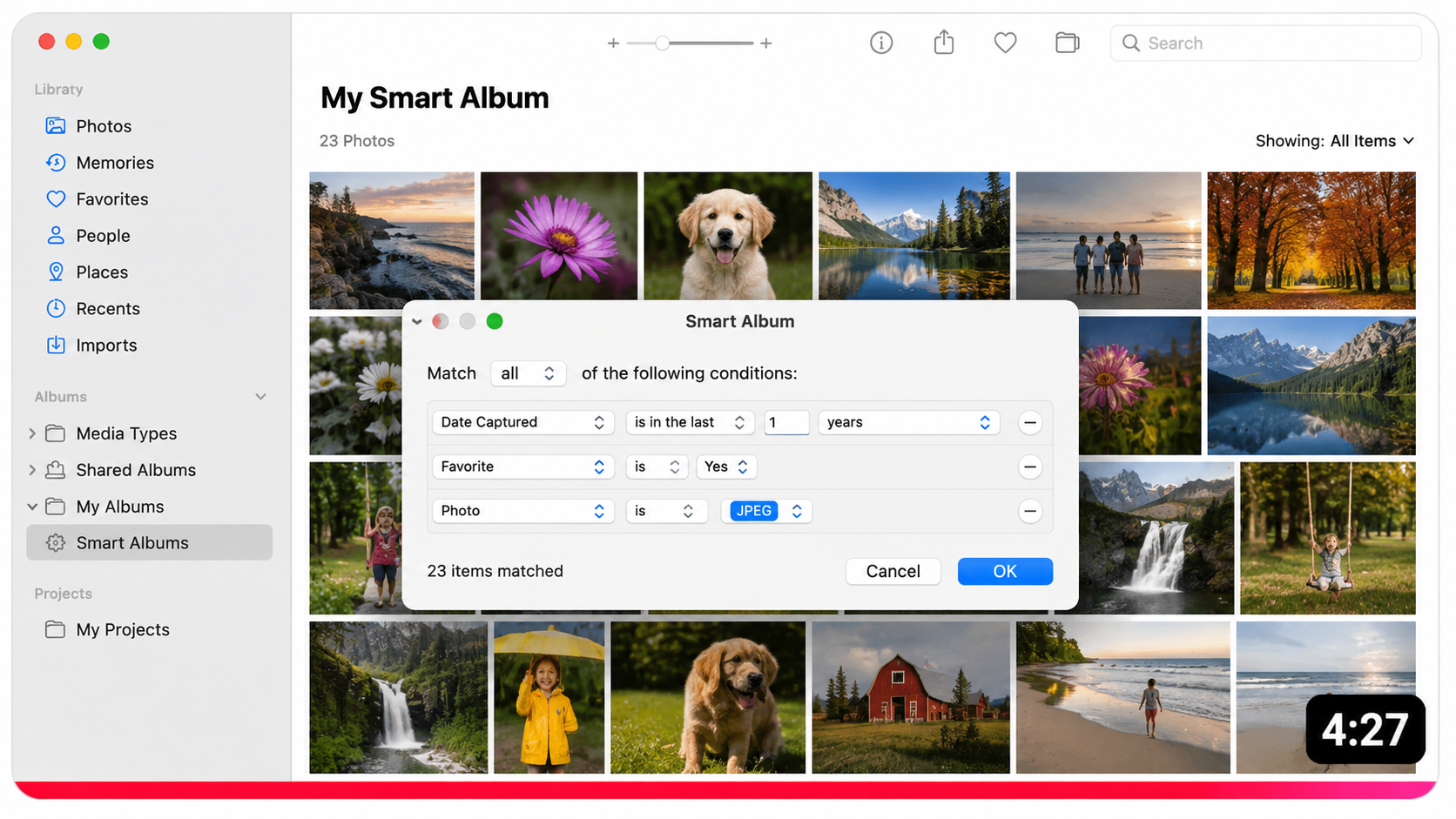
Searching and organizing a photo library.

People

Find photos associated with people you've identified in your library.

Places

Use location information when it is available to revisit trips and favorite places.

Subjects

Look for recognizable subjects, objects, scenes, and activities.

03 · Edit

Make your photos look better—without being a professional.

Simple adjustments can often make a big difference. Learning to experiment safely makes editing much less intimidating.

Editing a photo using Apple Photos.

Crop & Straighten

Improve composition and remove distracting edges.

Light & Color

Make a photo brighter, darker, warmer, cooler, or more balanced.

Filters

Understand when a filter helps—and when a simple adjustment is better.

Edit With Confidence

Learn the basics of non-destructive editing and how to undo or revert changes when appropriate.

04 · Clean Up

Take the clutter out of your library.

A healthy photo library isn't necessarily a tiny one. It's one where you can find what matters and feel comfortable managing it.

  • Duplicates — identify duplicate photos and decide which versions you really want to keep.
  • Screenshots — separate temporary screenshots from the photographs you want to preserve.
  • Accidental Photos — spot images that were never meant to be part of your long-term collection.
  • Safety First — don't delete something simply because you're uncertain. When in doubt, pause and investigate.
05 · Share

Your photos are meant to be enjoyed.

Learn practical ways to share individual photos, groups of photos, albums, slideshows, and family memories.

  • Messages — send a few photos quickly when you're having an everyday conversation.
  • Mail — use email when the situation calls for it and understand your sharing choices.
  • Albums — share collections when sending dozens of individual photos would be cumbersome.
Explore Photo Sharing →
06 · iCloud Photos

Understand the connection between your devices.

One of the most important Photos skills is understanding what happens when your iPhone, iPad, Mac, and iCloud Photos work together.

  • Syncing — understand why the same library can appear on several devices.
  • Deleting — learn why deleting a synced photo can affect other devices.
  • Storage — understand device storage versus iCloud storage at a practical level.
  • Confidence — know what you're looking at before making changes to a large library.
Explore iCloud Photos →
07 · Preserve

Keep your memories for the future.

Some memories deserve more than a place in your Photos library. Learn how to export, back up, scan, organize, and preserve them.

  • Export — understand the difference between exporting originals and edited versions.
  • External Drives — learn how external storage can help with large collections and long-term copies.
  • Scan Old Photos — bring printed photographs and slides into your digital library.
  • Restore & Enhance — use careful editing and AI-assisted restoration when appropriate.
Explore Photo Preservation →
The Milo Training Approach

Learn. Practice. Have Fun. Then make it your own.

Every Photos workshop is designed around real questions and real photo libraries—not a list of features you'll forget the moment you leave.

✓ Step-by-step instruction
✓ Practice on your own device
✓ Questions are encouraged

Ready to take control of your photos?

Start with a workshop or schedule one-on-one help.

Book a Session